memo: Python | Plotting

Difference between plt and fig,ax

object-oriented


Inverse the X-axis

GeeksforGeeks

1
2
3
import matplotlib.pyplot as plt
fig, ax = plt.subplots()
ax.invert_xaxis()

Add caption below the x-label

SO

  1. 1
    2
    3
    
    fig, ax = plt.subplots()
    txt = 'near and far are distance'
    fig.text(x=.5, y=.001, s=txt, ha='center')
    
1
2
3
fig, ax = plt.subplots()
ax.set_xlabel('''z_cam
near and far are distance''')

微分柱形图

SO

img


Set xticks

xticks is the (fixed) number on the x-axis, while xticklabels can be customized strings.


Change the number and text of the showing Ticks

GfG

  1. For plt:

    1
    2
    
    plt.xticks(ticks=[1,2,3,4], labels=None, **kwargs)
    plt.yticks(ticks=[7,13,24,22], labels=None,)
    
  2. Use locator_param() to change the tightness and number of ticks.

    plt.locator_params(axis='both', nbins=4)

  3. Use xlim() to restrict the diplayed area, rather the whoel plot.

    1
    2
    
    plt.xlim(0,3)
    plt.locator_params(axis='x', nbins=3)
    
  4. Use Matplotlib.ticker.MaxNLocator class

Set Number of Ticks in Matplotlib | Delft Stack

1
2
3
4
5
6
7
8
from matplotlib.ticker import MaxNLocator
fig, ax = plt.subplots(1,1)
ax.yaxis.set_major_locator(MaxNLocator(5)) 

# hide specific ticks
for i, tick in enumerate(ax.xaxis.get_ticklabels()):
   if i%2 !=0:
      tick.set_visible(False)

Set y-axis view limits

Matplotlib.axes.Axes.set_ylim() in Python - GeeksforGeeks

1
2
3
4
5
6
7
fig, ax = plt.subplots(facecolor ='# A0F0CC')
x, y = 4*(np.random.rand(2, 100) - .5)
ax.plot(x, y, 'g')
ax.set_ylim(-3, 3)

# 游标
cursor = Cursor(ax, useblit = True, color ='red', linewidth = 2)

Set the 1st x as 1 (not 0)

Python MatplotLib plot x-axis with first x-axis value labeled as 1 (instead of 0)


Add extra ticks and labels

  1. Add extra ticks which must be number, not work for string SO

    1
    2
    3
    
    fig, ax= plt.subplots()
    extraticks = [2.1, 3, 7.6]
    ax.set_xticks(list(ax.get_xticks()) + extraticks)
    
  2. Use ax.set_xticklabels() for string Create label list - SO

    1
    2
    3
    4
    5
    
    near, far = 1, 15
    ax.set_xticks(list(ax.get_xticks()) + [-near,-far])
    # Their labels also have to be appended at the end.
    xticklabels= ['-16', '-14', '-12', '-10', '-8', '-6', '-4', '-2','0', '-near', '-far']
    ax.set_xticklabels(xticklabels, rotation=90)
    

Example: Mark the yticks for the highest and lowest points:

1
2
3
4
5
6
7
rmse = np.load("./error_list.npz")['Train_RMSE']
idx = np.arange(len(rmse))

fig, ax = plt.subplots()
ax.plot(idx, rmse)
extraticks = [rmse.min(), rmse.max()]
ax.set_yticks(list(ax.get_yticks()) + extraticks)

Set xticks as integer

(Not sure) ax.xaxis.set_major_locator(MaxNLocator(integer=True))

  • Python:使用f-string保留小数点位数 csdn

  • 用decimal 模块:w3cschool

    1
    2
    3
    
    from decimal import Decimal
    a = 12.345
    Decimal(a).quantize(Decimal("0.00")) # 使用默认的进位方式(同round)“0.00”表示保留小数点后两位
    

Margin

to leave more space around the figure to show the ticks of the boundary Geeksforgeeks

Or prevent the markers get clipped by the axes GfG plt xticks

1
2
fig, ax = plt.subplots()
ax.margins(0.5)

Hide ticks


Legend

gfg Docs

1
2
ax.plot([1, 2, 3], label='Inline label')
ax.legend(loc='best', bbox_to_anchor=(0.5, 0., 0.5, 0.5))

Draw a horizontal line

  • plt : gfg

    1
    
    plt.axhline(y=0.5, color='r', linestyle='-')
    
  • ax: SO

    1
    
    ax.hlines(y=0.2, xmin=0.01, xmax=20, linewidth=2, color='r')
    

Tight layout

1
plt.tight_layout()

Or: plt.rcParams["savefig.bbox"] = 'tight'


Save as png

gfg

1
2
3
4
ax.set_facecolor('pink') # inner background
plt.savefig('depth_buffer.png', bbox_inches='tight', dpi =100, facecolor="white") # bkg color

plt.savefig('output.jpg', bbox_inches='tight', dpi =40) #is smaller

Draw markers on axes

plt.plot(x,y, zorder=10, clip_on=False)

plotting markers on top of axes


Arrow of axis

matplotlib axis arrow tip


Change fonts

Plot in Ubuntu has ugly fonts (which is like ‘sans-serif’).

plt.rcParams["font.family"] = "cursive", This will change to your computer’s default monospace font. How to change fonts in matplotlib (python)?


散点图

  • plt.scatter(x,y, c='r', s=4), s can control marker size, docs

  • marker 是反着画的

  • matplotlib.pyplot.scatter(x, y, s=None, c=None, marker=None, cmap=None, norm=None, vmin=None, vmax=None, alpha=None, linewidths=None, verts=None, edgecolors=None, hold=None, data=None, **kwargs)
    x,y组成了散点的坐标;s为散点的面积;c为散点的颜色(默认为蓝色’b’);marker为散点的标记;alpha为散点的透明度(0与1之间的数,0为完全透明,1为完全不透明);linewidths为散点边缘的线宽;如果marker为None,则使用verts的值构建散点标记;edgecolors为散点边缘颜色。 csdn


拉长坐标间距

Python设置matplotlib.plot的坐标轴刻度间隔以及刻度范围

 1
 2
 3
 4
 5
 6
 7
 8
 9
10
11
12
13
14
15
16
17
18
19
import matplotlib.pyplot as plt
from matplotlib.pyplot import MultipleLocator # 用于设置刻度间隔

x_vals = list(range(11))
y_vals = [x**2 for x in x_vals]
plt.plot(x_vals, y_vals, c='green')
plt.title('Squares', fontsize=24)

plt.tick_params(axis='both',which='major',labelsize=14)
plt.xlabel('Numbers',fontsize=14)
plt.ylabel('Squares',fontsize=14)
x_major_locator=MultipleLocator(1) #把x轴的刻度间隔设置为1,并存在变量里
y_major_locator=MultipleLocator(10) #把y轴的刻度间隔设置为10,并存在变量里
ax=plt.gca() #ax为两条坐标轴的实例
ax.xaxis.set_major_locator(x_major_locator) #把x轴的主刻度设置为1的倍数
ax.yaxis.set_major_locator(y_major_locator) #把y轴的主刻度设置为10的倍数
plt.xlim(-0.5,11) #把x轴的刻度范围设置为-0.5到11,因为0.5不满一个刻度间隔,所以数字不会显示出来,但是能看到一点空白
plt.ylim(-5,110) #把y轴的刻度范围设置为-5到110,同理,-5不会标出来,但是能看到一点空白
plt.show()

设置图片尺寸大小

如何指定matplotlib输出图片的尺寸? - pythonic生物人的回答 - 知乎 https://www.zhihu.com/question/37221233/answer/2250419008

  1. plt.rcParams['figure.figsize'] = (12.0, 8.0)

  2. fig, ax = plt.subplots(figsize=(15,0.5),dpi=300) pool


设置图片分辨率

plt.figure(figsize=(a, b), dpi=dpi)

matplotlib设置分辨率


网格

plt.grid(visible=True,linestyle="--", color='gray', linewidth='1',)


绘制CDF (221211)


Repeat drawing

How to change a matplotlib figure in a different cell in Jupyter Notebook?

1
2
fig.gca().scatter(x3, y3, color='g', linewidth=5)
fig

(2022-12-13)

Get the arguments name

use lib inspect with two .f_back: callers_local_vars = inspect.currentframe().f_back.f_back.f_locals.items(). Getting the name of a variable as a string


Get current color

  1. How to get color of most recent plotted line in Python’s plt

plt.gca().lines[-1].get_color()

  1. use ax Get default line colour cycle

    1
    2
    
    line = ax.plot(x,y)
    ax.plot(x, y+.3, color = line.get_color())
    

Combine two figures


Multiple subplots

  1. GfG

    1
    2
    3
    4
    5
    6
    7
    
    fig, ax = plt.subplots(3, 3)
    
    # draw graph
    for i in ax:
        for j in i:
            j.plot(np.random.randint(0, 5, 5), np.random.randint(0, 5, 5))
    plt.show()
    
  2. title of subplots: ax[0][0].set_title("xxx")

  3. hide x ticks for top subplots and y ticks for right plots: How to set a single, main title above all the subplots with Pyplot?

    1
    2
    
    plt.setp([a.get_xticklabels() for a in axarr[0, :]], visible=False)
    plt.setp([a.get_yticklabels() for a in axarr[:, 1]], visible=False)
    
  4. Set xticks for subplots: How to set xticks in subplots

     1
     2
     3
     4
     5
     6
     7
     8
     9
    10
    11
    12
    
    fig, axes = plt.subplots(nrows=3, ncols=4)
    
    # Set the ticks and ticklabels for all axes
    plt.setp(axes, xticks=[0.1, 0.5, 0.9], xticklabels=['a', 'b', 'c'],
            yticks=[1, 2, 3])
    
    # Use the pyplot interface to change just one subplot...
    plt.sca(axes[1, 1])
    plt.xticks(range(3), ['A', 'Big', 'Cat'], color='red')
    
    fig.tight_layout()
    plt.show()
    
  5. Set the fontsize of numbers of xticks: plt.setp(ax.get_xticklabels(), fontsize=12, fontweight="normal", horizontalalignment="left", rotation=90) set_xticks() needs argument for ‘fontsize’ #12318
    set_xticklabels-Docs


Scale y-axis

Docs

1
2
3
4
x = np.arange(len(Train_RMSE))
fig, ax = plt.subplots()
plt.yscale('log',)
ax.plot(x, Train_RMSE)

Composite 2 imgs

(2023-12-20) Setting alpha:

 1
 2
 3
 4
 5
 6
 7
 8
 9
10
11
12
13
import cv2
import matplotlib.pyplot as plt

img1 = cv2.imread('rot1.png')
pts1 = [(24, 124), (49, 124), (98, 124), (104, 124), (120, 124),
        (18, 146), (37, 146), (65, 146), (102, 146), (133, 146)]
for pt in pts1:
  cv2.circle(img1, pt, 0, (0, 0, 255))
plt.figure(figsize=(20,10))
plt.imshow(img1[:,:, ::-1])

img2 = cv2.imread('rot2.png')
plt.imshow(img2[:,:,::-1], alpha=0.6)

An example

 1
 2
 3
 4
 5
 6
 7
 8
 9
10
11
12
13
14
15
16
17
18
19
20
21
22
23
24
25
26
27
28
29
30
31
32
33
34
35
36
37
38
39
40
41
42
43
44
45
46
47
48
49
50
51
52
53
54
55
56
57
58
59
60
61
62
63
64
65
66
67
68
69
70
71
72
73
74
75
76
77
78
79
80
81
82
83
84
85
86
87
88
89
90
91
92
import matplotlib.pyplot as plt
import numpy as np
from matplotlib.ticker import MultipleLocator

epoch = np.array(
    [0, 1, 2, 3, 4, 5, 6, 7, 8, 9, 10, 11, 12, 13, 14, 15, 16, 17, 18, 19, 20, 21, 22, 23, 24, 25, 26, 27, 28, 29, 30,
     31, 32, 33, 34, 35, 36, 37, 38, 39, 40, 41, 42, 43, 44, 45, 46, 47, 48, 49, 50, 51, 52, 53, 54, 55, 56, 57, 58,
     59])
train_loss = np.array(
    [0.27195, 0.07782, 0.05188, 0.03321, 0.03054, 0.02322, 0.01962, 0.01537, 0.01347, 0.01266, 0.00895, 0.01107,
     0.00755, 0.00633, 0.00915, 0.00872, 0.00431, 0.00733, 0.00584, 0.00477, 0.00502, 0.00384, 0.00282, 0.00506,
     0.00307, 0.00325, 0.00588, 0.00277, 0.00445, 0.00318, 0.00181, 0.00532, 0.00218, 0.00379, 0.00190, 0.00201,
     0.00242, 0.00164, 0.00215, 0.00176, 0.00374, 0.00149, 0.00145, 0.00170, 0.00481, 0.00136, 0.00184, 0.00165,
     0.00162, 0.00265, 0.00285, 0.00172, 0.00241, 0.00139, 0.00181, 0.00161, 0.00135, 0.00264, 0.00165, 0.00158])
valid_loss = np.array(
    [0.04518, 0.02028, 0.01517, 0.01853, 0.00928, 0.01604, 0.01256, 0.01068, 0.01229, 0.01066, 0.01251, 0.00756,
     0.00836, 0.00777, 0.00623, 0.00942, 0.00761, 0.00691, 0.00626, 0.00607, 0.00708, 0.00703, 0.01061, 0.00758,
     0.00807, 0.00541, 0.00521, 0.00570, 0.00844, 0.00610, 0.00735, 0.00448, 0.00466, 0.00734, 0.00633, 0.00511,
     0.00737, 0.00380, 0.00410, 0.00604, 0.00685, 0.00546, 0.00618, 0.00411, 0.00543, 0.00572, 0.00631, 0.00821,
     0.00578, 0.00525, 0.00391, 0.00529, 0.00621, 0.00606, 0.00979, 0.00515, 0.00555, 0.00712, 0.00535, 0.00439])

# 解决曲线图里面中文显示乱码问题

# plt.rcParams['font.sans-serif'] = ['Hiragino Sans GB']  # 用来正常显示中文标签
#
# plt.rcParams['axes.unicode_minus'] = False
plt.figure(figsize=(8,6))

# 增加曲线说明

A, = plt.plot(epoch, train_loss, lw=1, label='train_loss')
B, = plt.plot(epoch, valid_loss, lw=1, label='valid_loss')
font1 = {'family': 'Times New Roman',
         'weight': 'normal',
         'size': 18, }
# x轴label

plt.xlabel("epoch", labelpad=2, fontsize=18,)

# y轴label

plt.ylabel("loss", labelpad=4, fontsize=18)

# 设置标题

# plt.title("change in loss", x=0.5, y=-0.2, pad=0.3, fontsize=18)
plt.title("change in loss", fontsize=18)
fig=plt.gcf()
fig.set_facecolor('white')


# ------限制显示x,y轴最小-最大值范围(刻度不一定是多少)

plt.xlim(0, 60)

plt.ylim(0, 0.3)

# ------设置x,y轴刻度

x_major_locator = MultipleLocator(10)

y_major_locator = MultipleLocator(0.02)

ax = plt.gca()

# ax为两条坐标轴的实例

ax.xaxis.set_major_locator(x_major_locator)
# ax.xaxis.set_ticks_position('bottom')
# 把x轴的主刻度设置为1的倍数

ax.yaxis.set_major_locator(y_major_locator)

# 把y轴的主刻度设置为10的倍数

# ------显示网格

# plt.grid()

plt.grid(True, linestyle="--", color='gray', linewidth='1', axis='both')

plt.legend(handles=[A, B], prop=font1)
plt.tick_params(labelsize=18)
labels = ax.get_xticklabels() + ax.get_yticklabels()
[label.set_fontname('Time New Roman') for label in labels]

font2 = {'family': 'Time New Roman',
         'weight': 'normal',
         'size': 18}

plt.show()
plt.savefig('saved_figure.jpg')

3D interactive plot

(2024-03-23)

Make 3D interactive Matplotlib plot in Jupyter Notebook - GfG

  • 3D Scatter plot:

    Code
     1
     2
     3
     4
     5
     6
     7
     8
     9
    10
    11
    12
    13
    14
    15
    16
    17
    18
    19
    20
    21
    22
    23
    24
    25
    26
    27
    28
    29
    30
    31
    32
    
    # for creating a responsive plot 
    %matplotlib widget 
    
    # importing required libraries 
    from mpl_toolkits.mplot3d import Axes3D 
    import matplotlib.pyplot as plt 
    
    # creating random dataset 
    xs = [14, 24, 43, 47, 54, 66, 74, 89, 12, 
          44, 1, 2, 3, 4, 5, 9, 8, 7, 6, 5] 
    
    ys = [0, 1, 2, 3, 4, 5, 6, 7, 8, 9, 6, 3,
          5, 2, 4, 1, 8, 7, 0, 5] 
    
    zs = [9, 6, 3, 5, 2, 4, 1, 8, 7, 0, 1, 2,
          3, 4, 5, 6, 7, 8, 9, 0] 
    
    # creating figure 
    fig = plt.figure() 
    ax = fig.add_subplot(111, projection='3d') 
    
    # creating the plot 
    plot_geeks = ax.scatter(xs, ys, zs, color='green') 
    
    # setting title and labels 
    ax.set_title("3D plot") 
    ax.set_xlabel('x-axis') 
    ax.set_ylabel('y-axis') 
    ax.set_zlabel('z-axis') 
    
    # displaying the plot 
    plt.show()
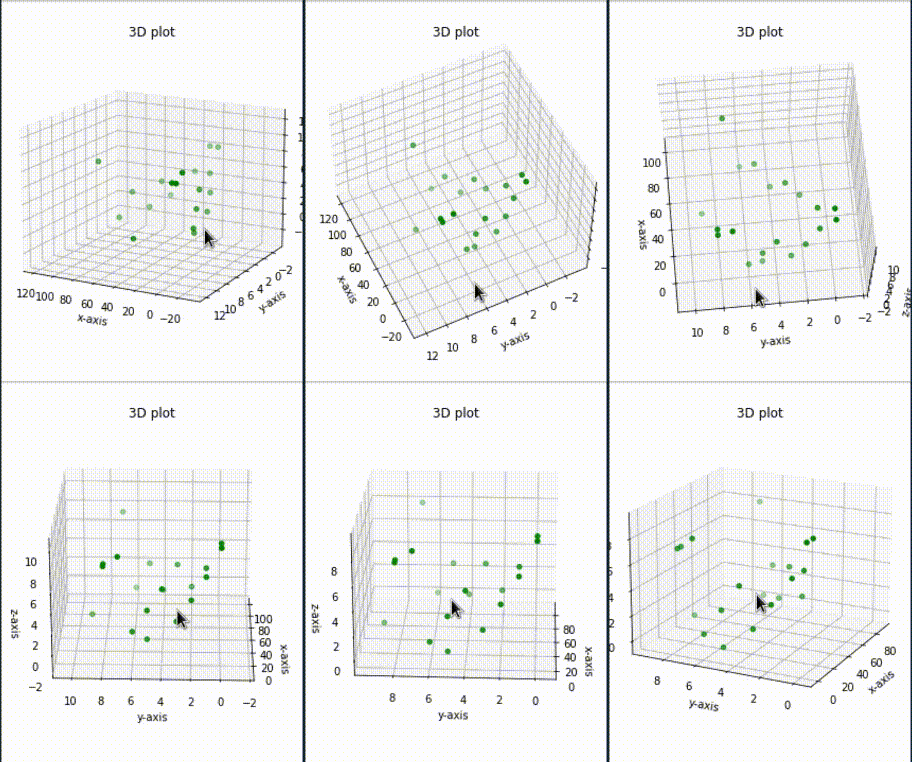
    
  • 3D Bar plot:

    Code
     1
     2
     3
     4
     5
     6
     7
     8
     9
    10
    11
    12
    13
    14
    15
    16
    17
    18
    19
    20
    21
    22
    23
    24
    25
    26
    27
    28
    
    %matplotlib widget 
    from mpl_toolkits.mplot3d import Axes3D 
    import matplotlib.pyplot as plt 
    import numpy as np 
    
    # creating random dataset 
    xs = [2, 3, 4, 5, 1, 6, 2, 1, 7, 2] 
    ys = [1, 2, 3, 4, 5, 6, 7, 8, 9, 10] 
    zs = np.zeros(10) 
    dx = np.ones(10) 
    dy = np.ones(10) 
    dz = [1, 2, 3, 4, 5, 6, 7, 8, 9, 10] 
    
    # creating figure 
    figg = plt.figure() 
    ax = figg.add_subplot(111, projection='3d') 
    
    # creating the plot 
    plot_geeks = ax.bar3d(xs, ys, zs, dx,  
                          dy, dz, color='green') 
    
    # setting title and labels 
    ax.set_title("3D bar plot") 
    ax.set_xlabel('x-axis') 
    ax.set_ylabel('y-axis') 
    ax.set_zlabel('z-axis') 
    
    plt.show()
    

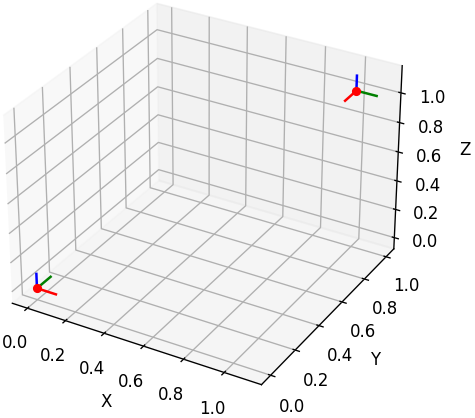
Camera Poses

(2024-03-23)

Generate by ChatGPT with prompt: “How to plot multiple camera poses in a single figure?”

Code
 1
 2
 3
 4
 5
 6
 7
 8
 9
10
11
12
13
14
15
16
17
18
19
20
21
22
23
24
25
26
27
28
29
30
31
32
33
34
35
36
37
38
39
40
41
42
43
44
45
46
47
48
49
50
51
52
53
54
55
56
%matplotlib widget
import numpy as np
import matplotlib.pyplot as plt

def plot_camera_poses(poses, axis_length=0.1):
    # Create a new figure
    fig = plt.figure()
    ax = fig.add_subplot(111, projection='3d')

    # Plot each camera pose
    for pose in poses:
        # Extract camera position and orientation
        cam_position = pose['position']
        cam_orientation = pose['rotation']

        # Plot camera position
        ax.scatter(cam_position[0], cam_position[1], cam_position[2], c='r', marker='o')

        # Plot camera axes
        axes_endpoints = cam_position + axis_length * cam_orientation
        ax.plot3D([cam_position[0], axes_endpoints[0,0]], 
                  [cam_position[1], axes_endpoints[0,1]], 
                  [cam_position[2], axes_endpoints[0,2]], 'r')
        ax.plot3D([cam_position[0], axes_endpoints[1,0]], 
                  [cam_position[1], axes_endpoints[1,1]], 
                  [cam_position[2], axes_endpoints[1,2]], 'g')
        ax.plot3D([cam_position[0], axes_endpoints[2,0]], 
                  [cam_position[1], axes_endpoints[2,1]], 
                  [cam_position[2], axes_endpoints[2,2]], 'b')

    # Set plot limits and labels
    ax.set_xlabel('X')
    ax.set_ylabel('Y')
    ax.set_zlabel('Z')

    # Show plot
    plt.show()

# Example camera poses (positions and rotation matrices)
poses = [
    {
        'position': np.array([0, 0, 0]),
        'rotation': np.array([[1, 0, 0],
                              [0, 1, 0],
                              [0, 0, 1]])
    },
    {
        'position': np.array([1, 1, 1]),
        'rotation': np.array([[0, -1, 0],
                              [1, 0, 0],
                              [0, 0, 1]])
    }
]

# Plot camera poses
plot_camera_poses(poses)

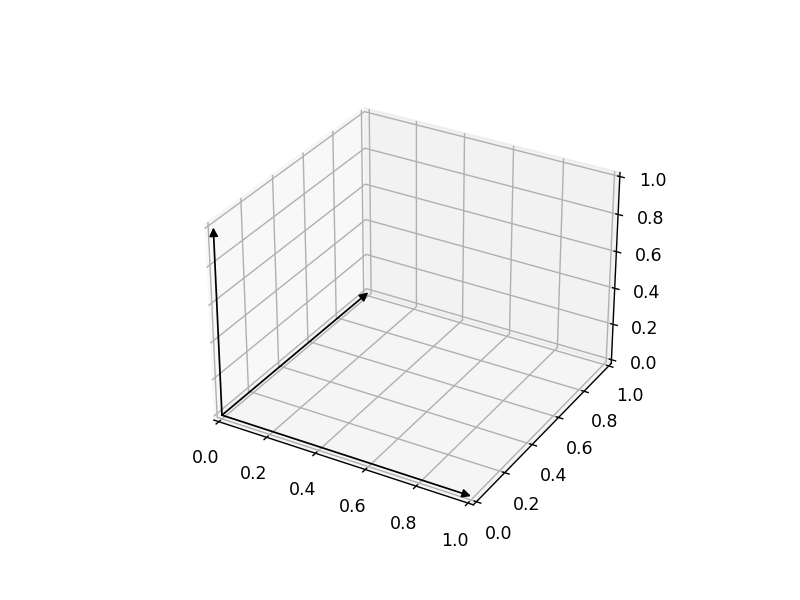
3D arrow

(2024-03-23)

Putting arrowheads on vectors in a 3d plot - SO

Code
 1
 2
 3
 4
 5
 6
 7
 8
 9
10
11
12
13
14
15
16
17
18
19
20
21
22
23
24
25
26
27
28
29
30
31
32
33
34
35
%matplotlib widget
import numpy as np
import matplotlib.pyplot as plt
from matplotlib.patches import FancyArrowPatch
from mpl_toolkits.mplot3d import proj3d

class Arrow3D(FancyArrowPatch):
    def __init__(self, xs, ys, zs, *args, **kwargs):
        super().__init__((0,0), (0,0), *args, **kwargs)
        self._verts3d = xs, ys, zs

    def do_3d_projection(self, renderer=None):
        xs3d, ys3d, zs3d = self._verts3d
        xs, ys, zs = proj3d.proj_transform(xs3d, ys3d, zs3d, self.axes.M)
        self.set_positions((xs[0],ys[0]),(xs[1],ys[1]))

        return np.min(zs)

arrow_prop_dict = dict(mutation_scale=10, arrowstyle='-|>', color='k', shrinkA=0, shrinkB=0)

fig = plt.figure()
ax = fig.add_subplot(111, projection='3d') 
    
a = Arrow3D([0, 1], 
            [0, 0], 
            [0, 0], **arrow_prop_dict)
ax.add_artist(a)
a = Arrow3D([0, 0], 
            [0, 1], 
            [0, 0], **arrow_prop_dict)
ax.add_artist(a)
a = Arrow3D([0, 0], 
            [0, 0], 
            [0, 1], **arrow_prop_dict)
ax.add_artist(a)

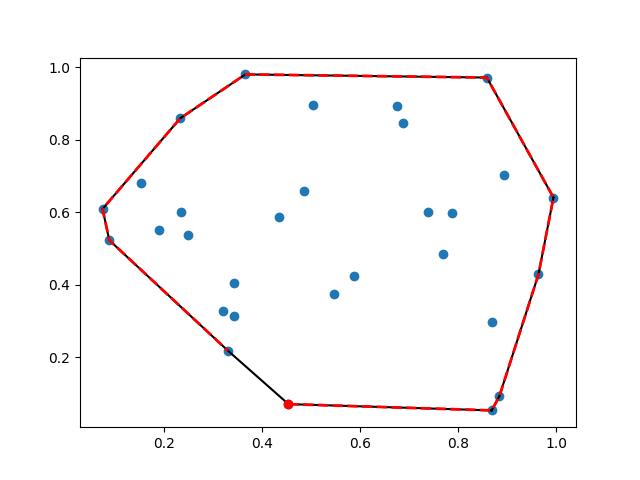
Convex polygon on 2D

(2024-03-26)

How to fill an area within a polygon in Python using matplotlib? - SO

Example from Scipy:

 1
 2
 3
 4
 5
 6
 7
 8
 9
10
11
12
13
14
15
16
# Convex hull of a random set of points:
from scipy.spatial import ConvexHull, convex_hull_plot_2d
import numpy as np
rng = np.random.default_rng()
points = rng.random((30, 2))   # 30 random points in 2-D
hull = ConvexHull(points)

# Plot it:
import matplotlib.pyplot as plt
plt.plot(points[:,0], points[:,1], 'o')
for simplex in hull.simplices:
    plt.plot(points[simplex, 0], points[simplex, 1], 'k-')

plt.plot(points[hull.vertices,0], points[hull.vertices,1], 'r--', lw=2)
plt.plot(points[hull.vertices[0],0], points[hull.vertices[0],1], 'ro')
plt.show()

Fill 3D Polygon

(2024-03-26)

  • ax.fill is used for 2D, and doesn’t work for 3D.
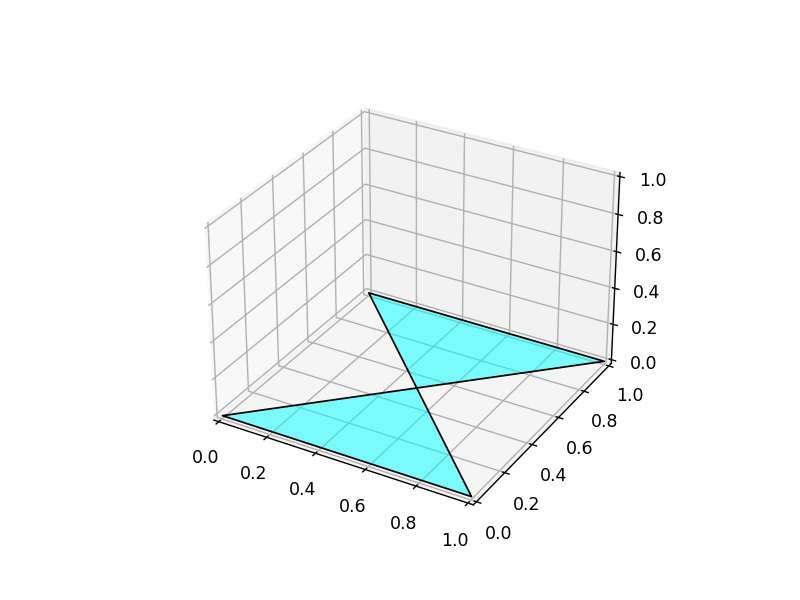
  1. ax.add_collection3d cannot follow the counter-clockwise order of convex hull to fill the polygon. For example, when drawing a rectangle, it will fill 2 triangles:

     1
     2
     3
     4
     5
     6
     7
     8
     9
    10
    11
    12
    13
    14
    
    %matplotlib widget
    import numpy as np
    import matplotlib.pyplot as plt
    from mpl_toolkits.mplot3d import Axes3D
    from mpl_toolkits.mplot3d.art3d import Poly3DCollection
    
    fig = plt.figure()
    ax = fig.add_subplot(111, projection='3d') 
    verts = np.array([[ [0,0,0], 
                        [1,0,0], 
                        [0,1,0], 
                        [1,1,0] ]]) # (1,4,3)
    rec = Poly3DCollection(verts, alpha=0.5, facecolors='cyan', edgecolors='k')
    ax.add_collection3d(rec)
    
    • The Poly3DCollection code is generated by ChatGPT with prompt: “How to fill a 3D triangle with matlabplot”
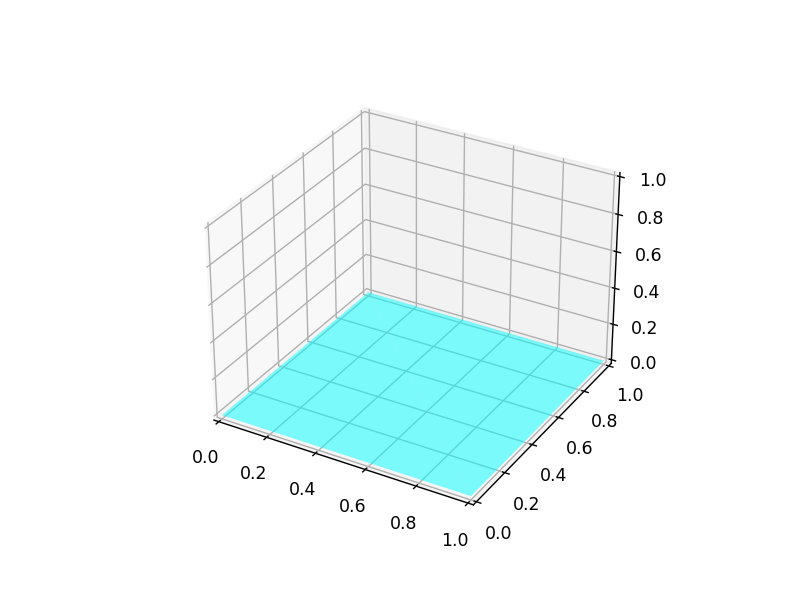
  2. So, I draw 2 triangles to form a quadrilateral:

     1
     2
     3
     4
     5
     6
     7
     8
     9
    10
    11
    12
    13
    14
    15
    16
    17
    18
    19
    
    %matplotlib widget
    import numpy as np
    import matplotlib.pyplot as plt
    from mpl_toolkits.mplot3d import Axes3D
    from mpl_toolkits.mplot3d.art3d import Poly3DCollection
    
    fig = plt.figure()
    ax = fig.add_subplot(111, projection='3d') 
    verts = np.array([[ [0,0,0], 
                        [1,0,0], 
                        [0,1,0],]])
    tri = Poly3DCollection(verts, alpha=0.5, facecolors='cyan',)
    ax.add_collection3d(tri)
    
    verts = np.array([[ [1,0,0], 
                        [0,1,0],
                        [1,1,0] ]])
    tri = Poly3DCollection(verts, alpha=0.5, facecolors='cyan',)
    ax.add_collection3d(tri)
    
  3. Plotting 3D Polygons - SO


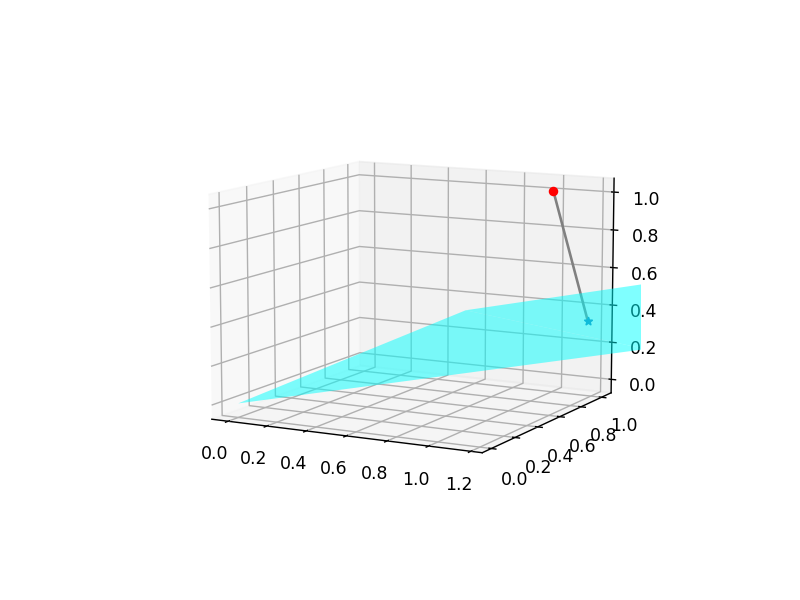
Project 3D point onto plane

(2024-03-26)

How to project a point onto a plane in 3D? - SO

  1. The distance from 3D point to the plane: dot product for 3D point and plane normal vector.

  2. 3D point minus the distance, resulting in the projection.

Code
 1
 2
 3
 4
 5
 6
 7
 8
 9
10
11
12
13
14
15
16
17
18
19
20
21
22
23
24
25
26
27
28
29
30
31
32
33
%matplotlib widget
import numpy as np
import matplotlib.pyplot as plt
from mpl_toolkits.mplot3d import Axes3D
from mpl_toolkits.mplot3d.art3d import Poly3DCollection

R = np.array([[ 0.97026268,  0.00747991,  0.24193878], # cam x-axis
              [-0.01474287,  0.99949291,  0.02822342], # cam y-axis
              [-0.24160499, -0.030951  ,  0.96988095]]) #cam z-axis

fig = plt.figure()
ax = fig.add_subplot(111, projection='3d') 

# fill rectangle
verts = np.array([[ [0,0,0], R[0]*2, R[1]*2, ]]) # (1,4,3)
tri = Poly3DCollection(verts, alpha=0.5, facecolors='cyan', )
ax.add_collection3d(tri)
verts = np.array([[ R[0]*2, R[1]*2, (R[0]+R[1])*2 ]]) # (1,4,3)
tri = Poly3DCollection(verts, alpha=0.5, facecolors='cyan', )
ax.add_collection3d(tri)

p = np.array([1,1,1])
ax.scatter(*p, c='r', marker='o')
plane_normal = R[2]

len2plane = R[2]@ p.T

projection = p-len2plane * plane_normal

ax.scatter(*projection, marker='*')
ax.plot3D([p[0], projection[0]], 
          [p[1], projection[1]], 
          [p[2], projection[2]], 'gray')